Quick Start
Select your Project:
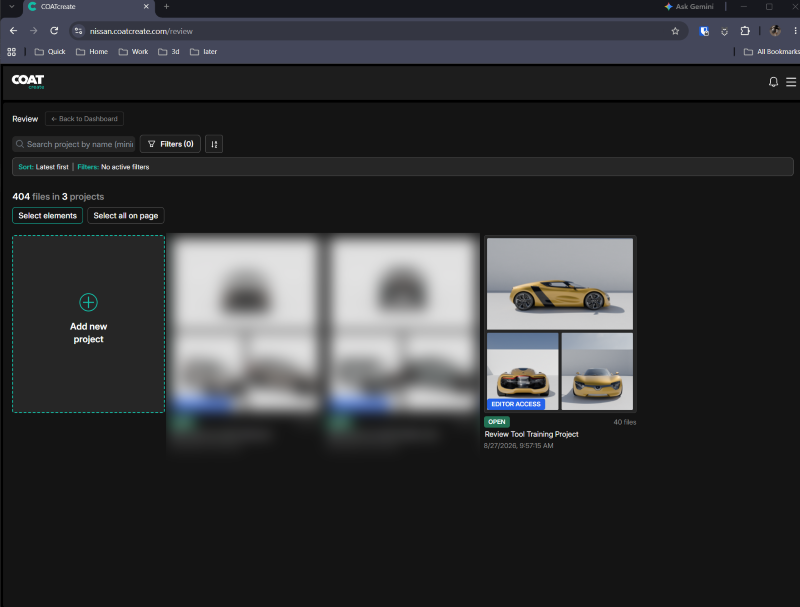
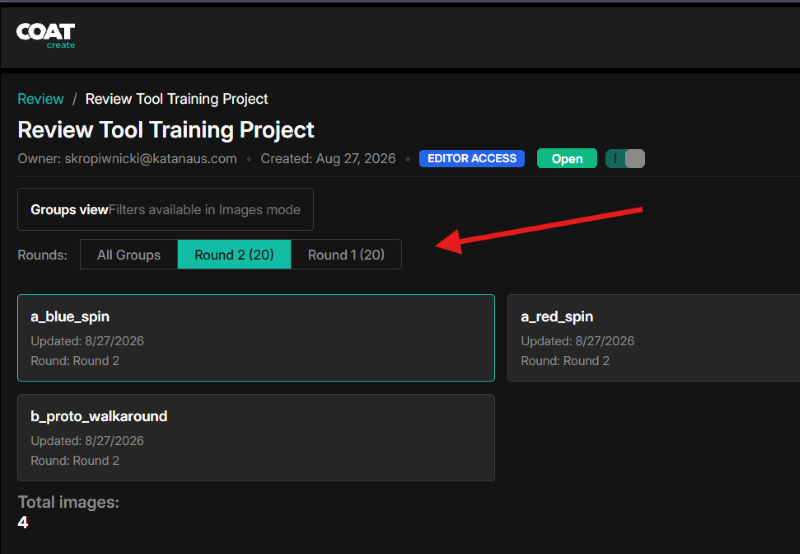
Select the latest round:
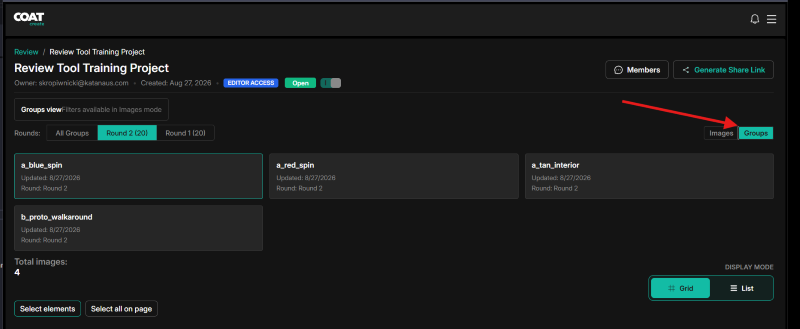
Set the display to image groups for easier sorting:
Select an image to Compare and Comment.
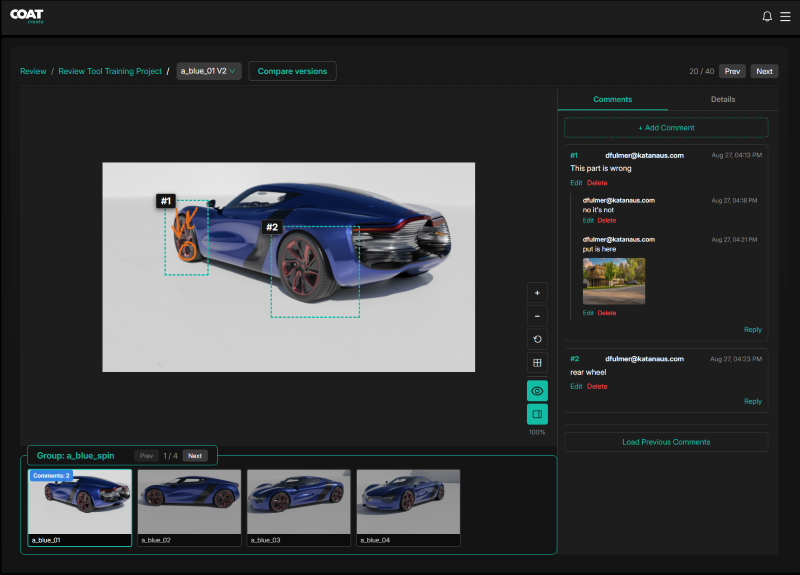
Image tools:
Clicking on an image allows you to pan on it.
The tool bar at the lower left has the following buttons:
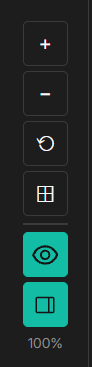
- Zoom In
- Zoom Out
- Reset
- Fit Image
- Hide / Show Commnents
- Hide / Show Ui Pannels
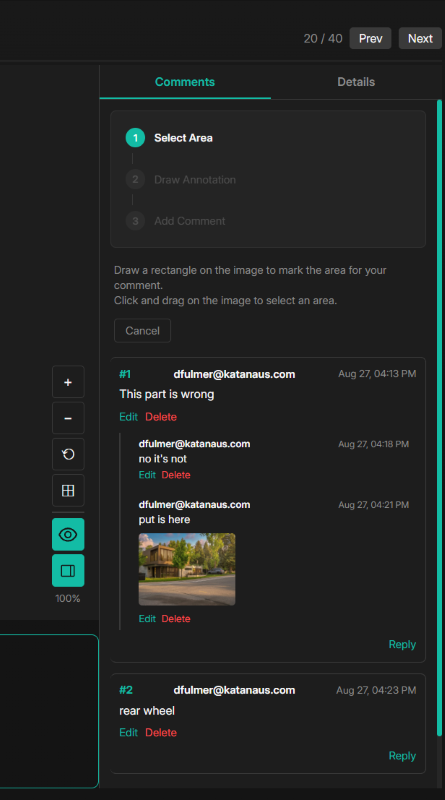
Comments are on the right hand side. To create a comment you must draw a region on the image for your comment. This ensures that every comment has a focus. Initially you can freehand draw, or create an arrow, then you can write out your comment. Written comments can include attached images or documents.
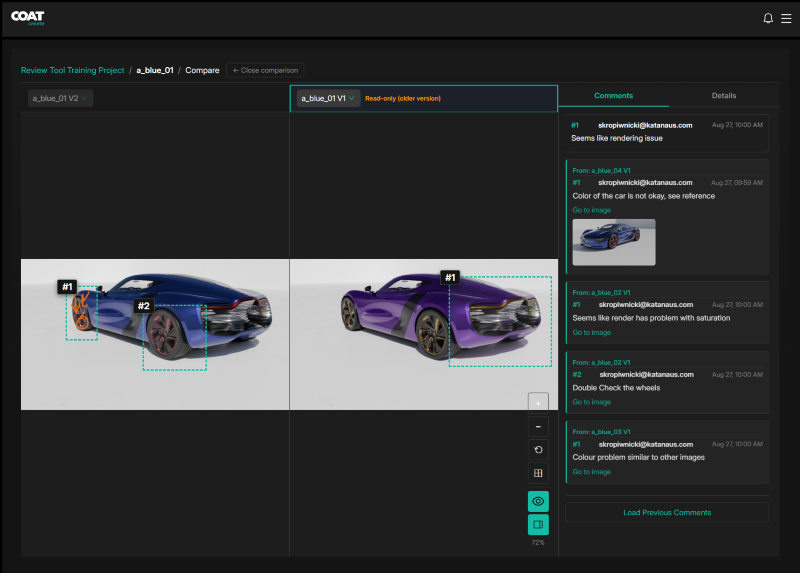
The compare button brings up a side by side comparison view. Which ever version is selected, the comments for that version will show up on the right side.
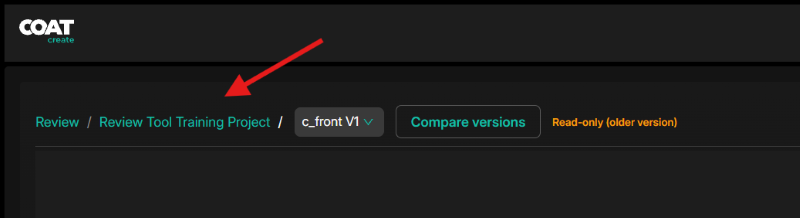
To go back to the top level of your project click it's name in the path at the top.
For more detailed information use the menu bar to the left.