General Concepts
States, Renders and Workspaces explained
In COATcreate, your work is organized using States, Renders, and Workspaces. Understanding how these elements work together will help you manage your projects and workflow.
What is a State?
A State is a snapshot of your current scene configuration. Think of it like a lightweight "save" — you're not saving every bit of data, but rather the decisions you've made in your scene.
-
Each State includes:
-
Product configuration and position
-
Environment selection and variants
-
Camera postiion and settings
-
Lighting configuration (Sky and Custom lights)
-
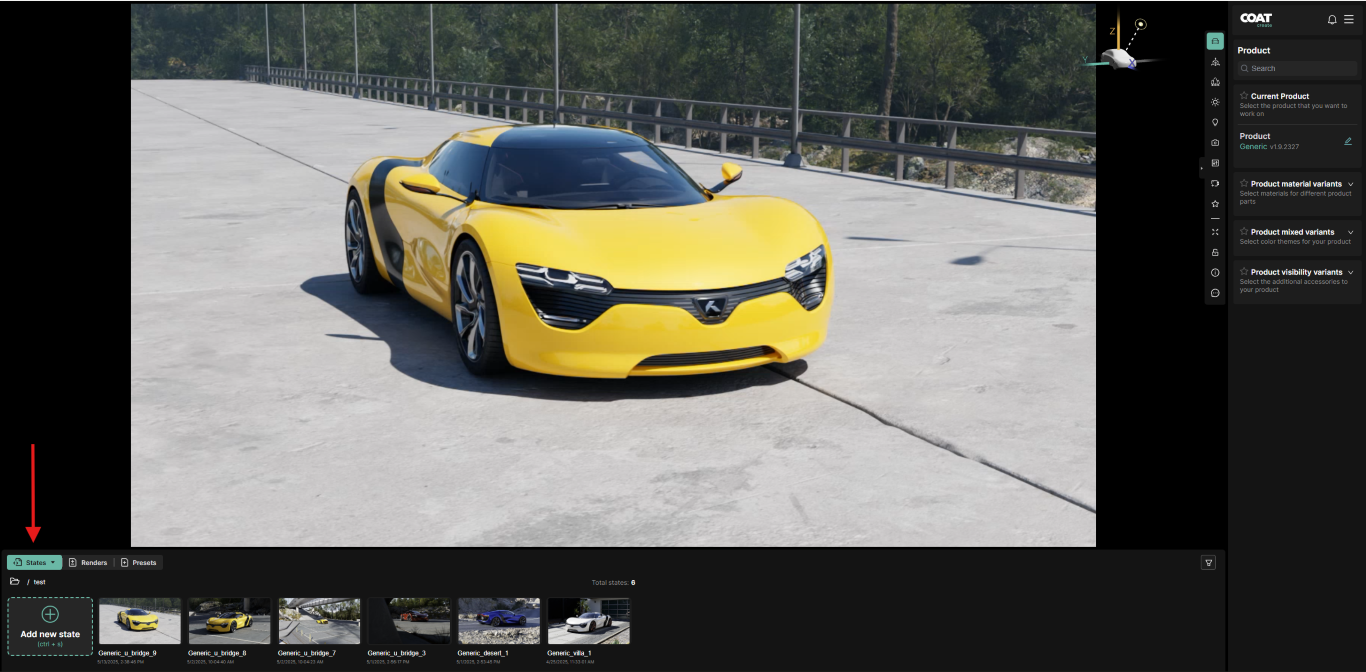
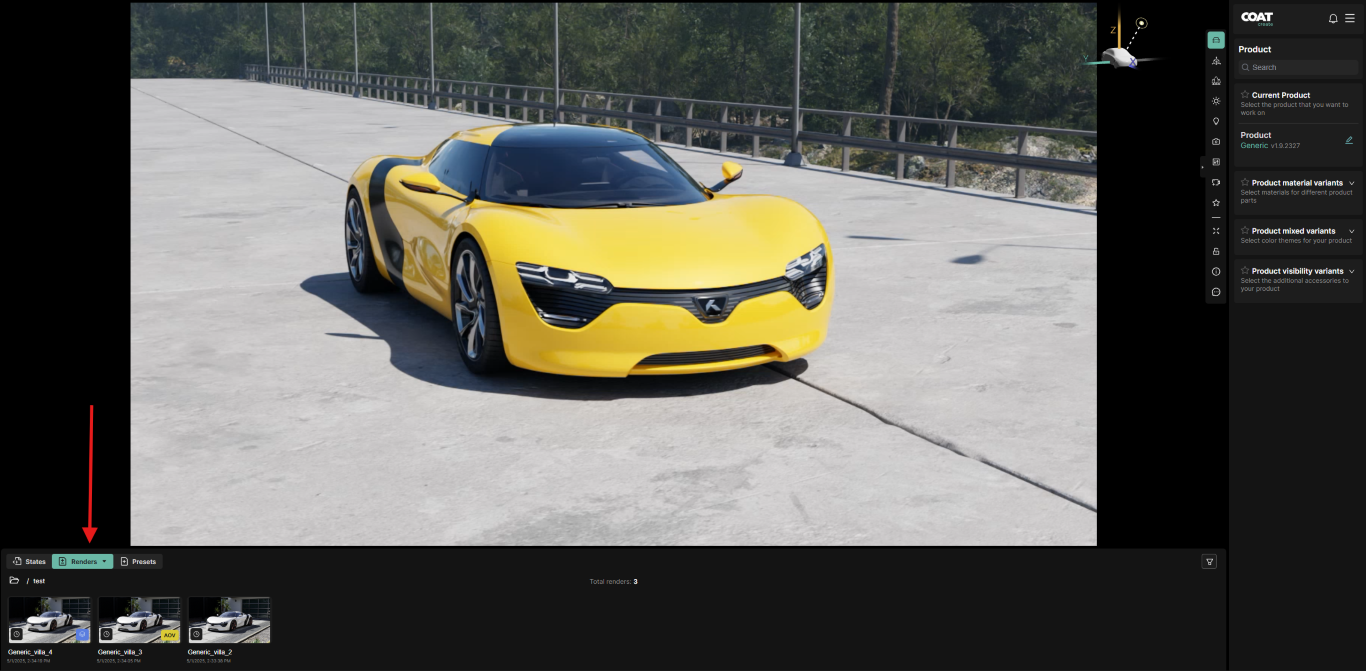
Each State saved includes a thumbnail visible in the States menu at the lower left of the interface. States are used to restore COATcreate to the configuration contained in each state by clicking on it's thumbnail.
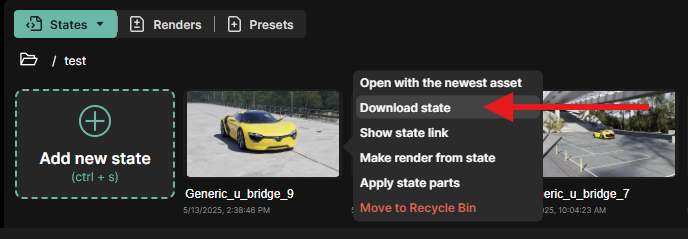
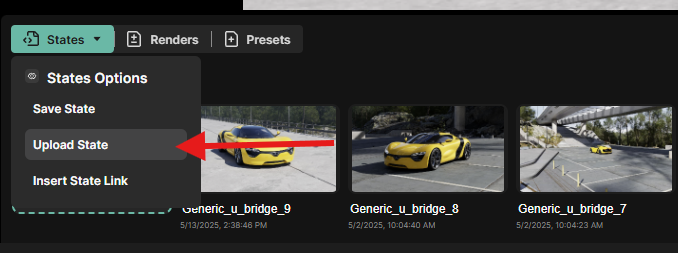
States can be downloaded and uploaded between users to allow access to the exact configuration saved, facilitating revisions and collaborative workflows.
What is a Render?
A Render is a high quality image, generated at the specified resolution which you can download and use outside of COATcreate.
Renders are embedded with the State information as meta data, so this means you can both use the image as content, and use it to restore a working session of COATcreate.
Renders will appear in the Renders section in the lower left of the interface. Renders can be downloaded from here to the downloads folder of your browser.
Please see the Rendering section of the documentation for more information on Rendering options.
What is the Dashboard?
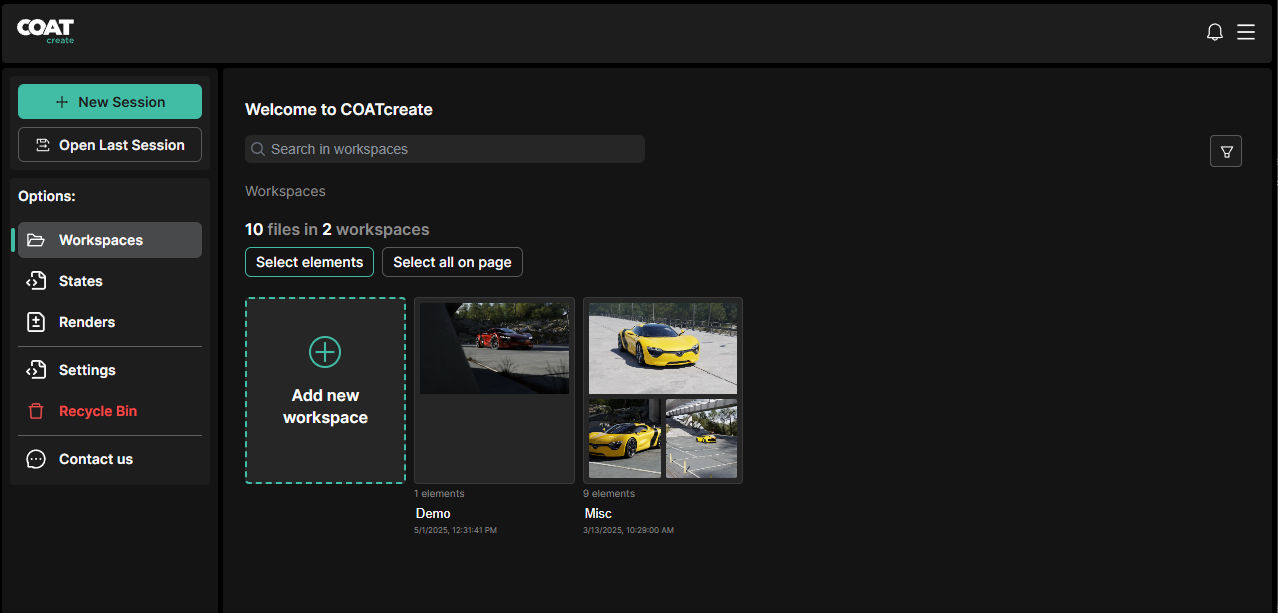
The Dashboard is the part of the COATcreate interface that will allow you to create and access your workspaces, view states and renders, as well as access the Recycling Bin from the left side menu. Please see the Dashboard section of the documentation for more information.
What is a Workspace?
A workspace is a collection of both states and renders. You may create as many workspaces as you choose to stay organized, that could be at a project or shot level. States and renders can be moved from one workspace to another via the Dashboard.
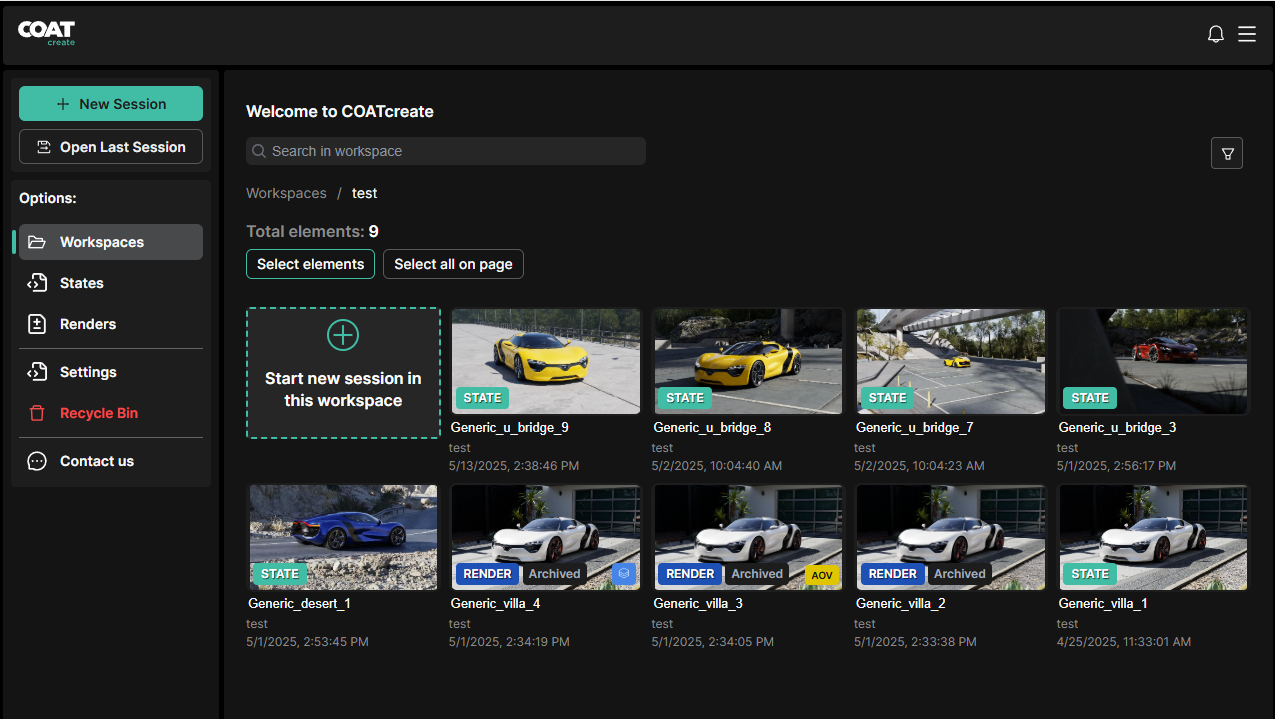
The contents of the Workspace "Misc" showing both states and renders
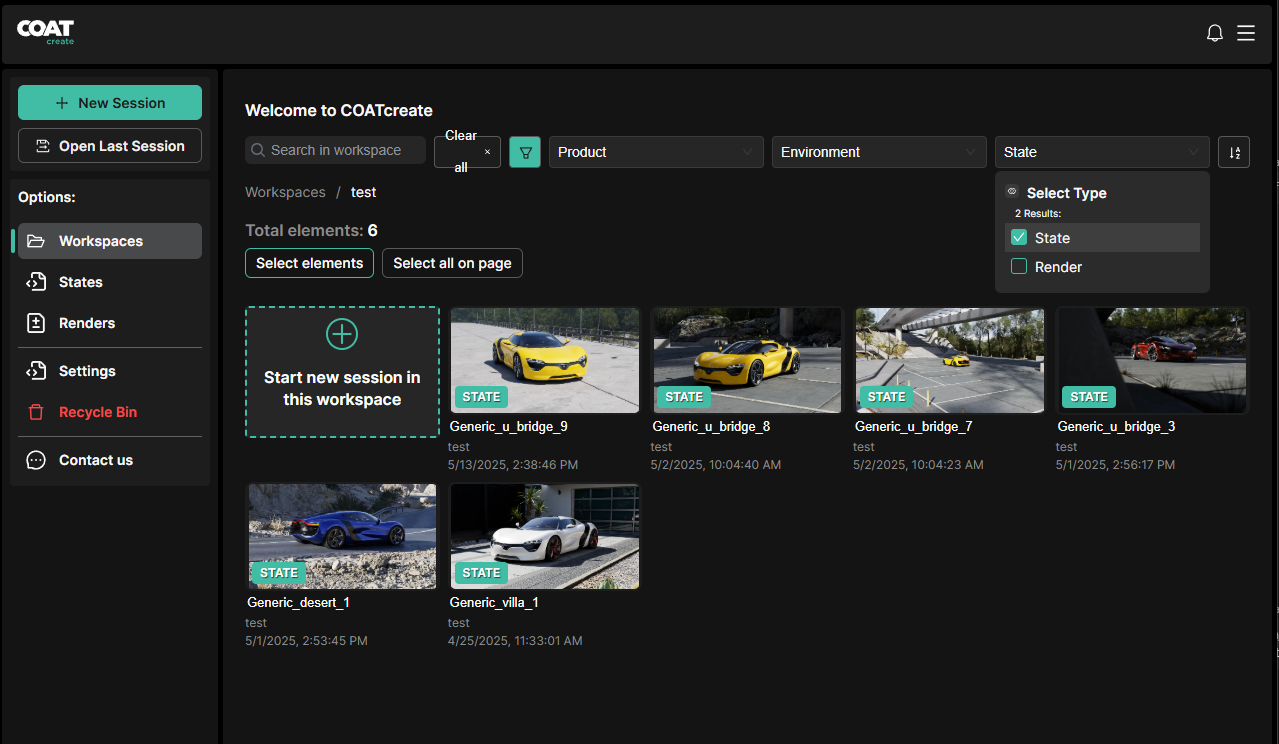
The contents of a Workspace can be filtered by pressing the filter icon in the right side of the interface. Content can be filtered by Product, Environment, and Type. Type meaning wether the element is a State or a Render
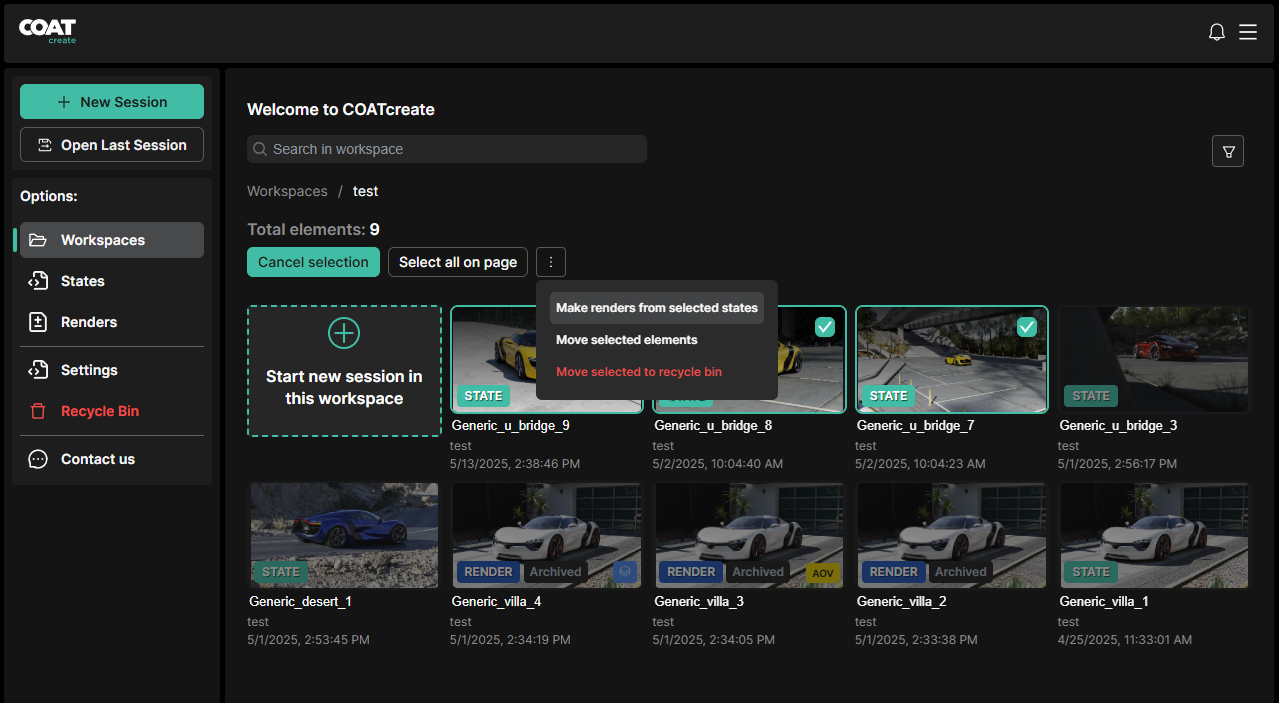
By choosing the Select Elements button you can select multiple states as once to perform various functions, including submit selected states as renders, move states and renders between workspaces, or move selected states and renders to the Recycle Bin.
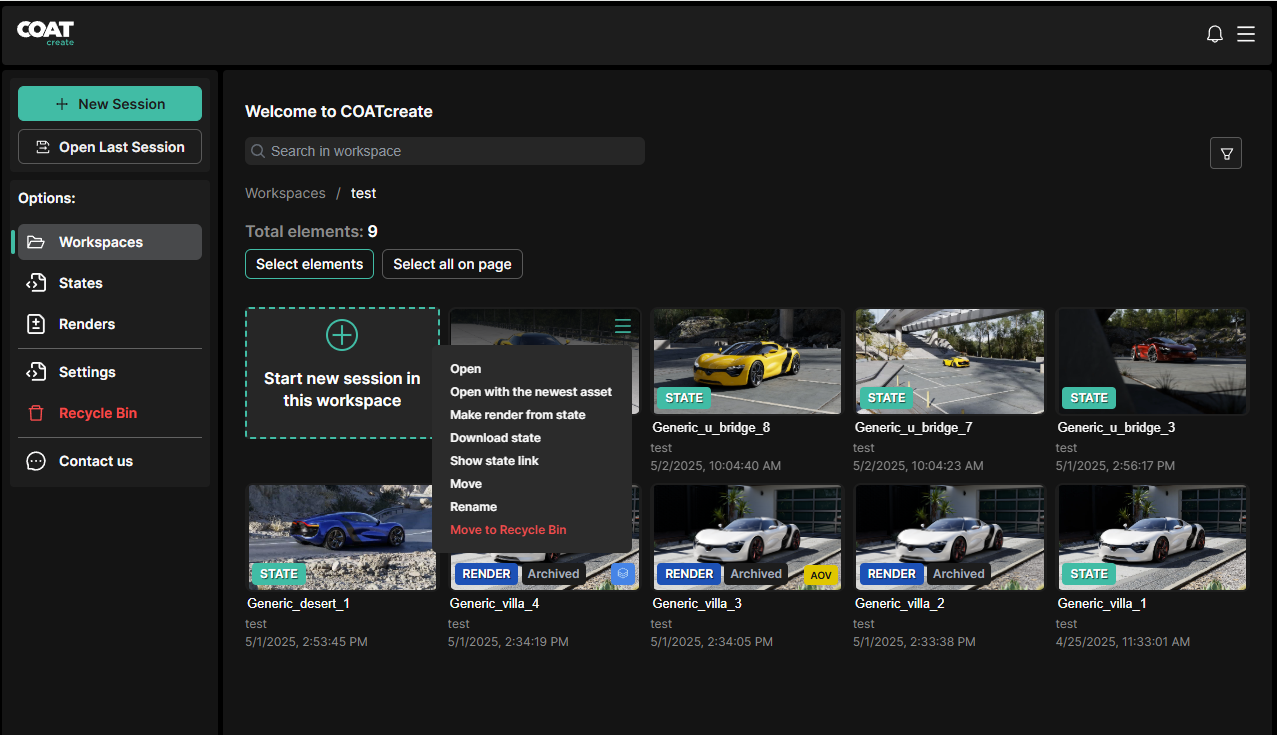 By clicking the three bar icon in the upper right corner of a state's thumbnail, you can perform various functions. For example Open that state into a working session, update it with the latest asset, make a render, download the state, move the state to another workspace, rename the state, or move it to the Recycle Bin.
Workspaces may also be shared by the owner to another COAT user. Please see the Dashboard section of the documentation.
Recycle Bin
The recycle bin is a holding area for files that have been removed from workspaces either from the dashboard or from a working session. Files in the Recycle Bin may be restored to a workspace, however once a file is deleted from the Recycle Bin there is no option to recover it.