Dashboard
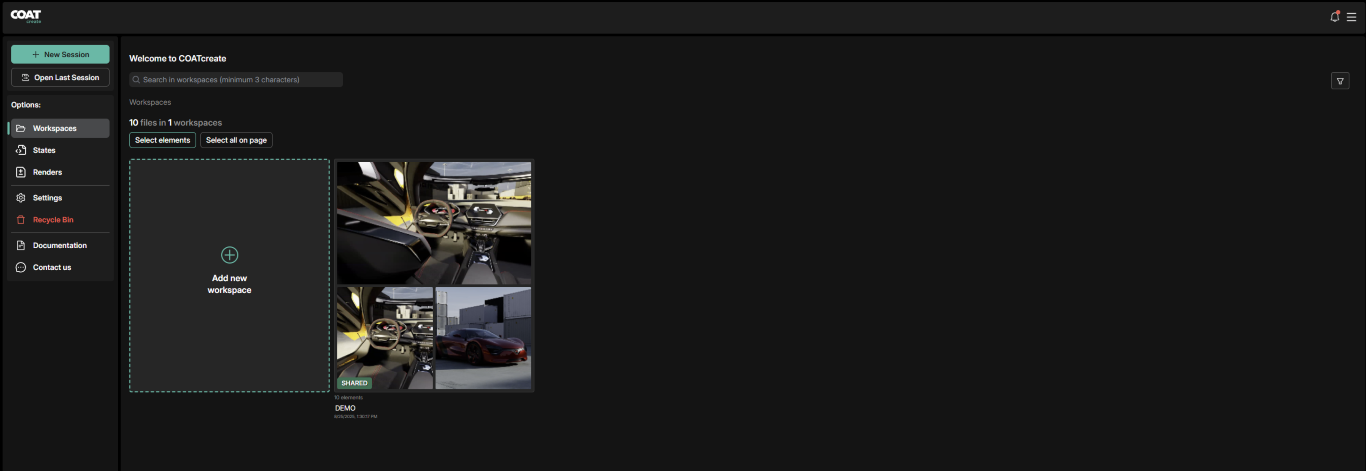
The dashboard is your file manager for COATcreate. There is a title bar along the top. With a left hand menu and a right hand display area.
Left hand menu:
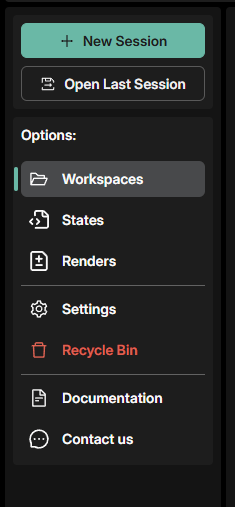
New Session
This will let you create a new workspace or a previous workspace and launch into it.
Open Last Session
This will open your previous workspace.
Options:
The options menu presents the following:
- Workspaces
- States
- Renders
- Settings
- Recycle Bin
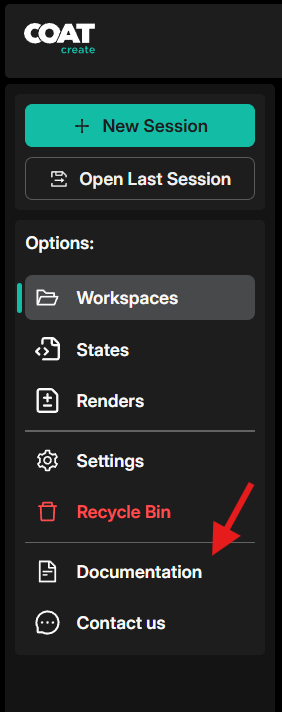
- Documentation
- Contact us
Selecting any of these will modify the contents of what is displayed in the main window to the right. If you select "Renders" then only renders will appear in the window.
In the lower right section of the interface:
Right hand Display Area
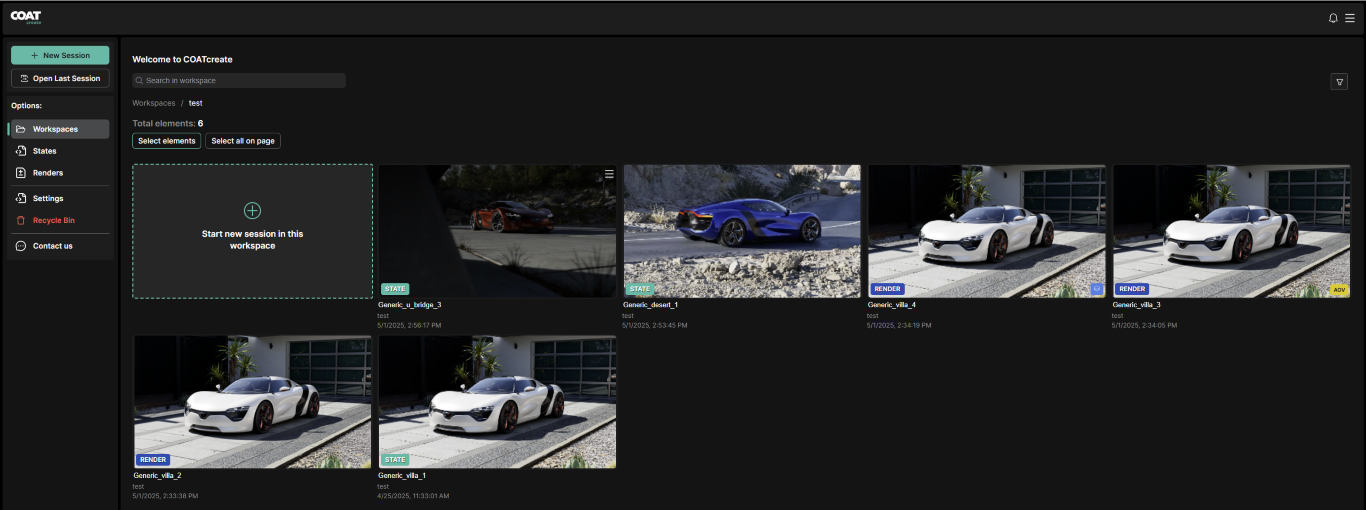
Search in Workspaces
By typing in keywords, you can search across all of your selected asset types, selected by the left hand menu.
Sorting Filter
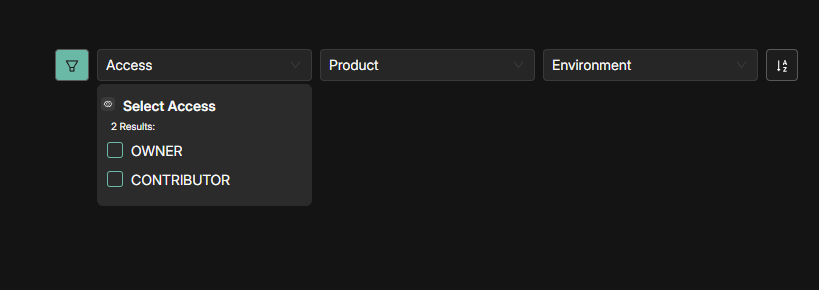
There are sorting filter options located in the Dashboard to help sort through Workspaces
- Oldest First
- Latest First
- By Environment
- By Name A-Z
- By Name Z-A
- By Access status - Either Owner or Contributor
Within a Workspace you also have similar filters to sort through States and Renders filer options are located in the right-hand area of the interface.
- Oldest First
- Latest First
- By Product
- By Environment
- By Type - State or Render
- By Name A-Z
- By Name Z-A
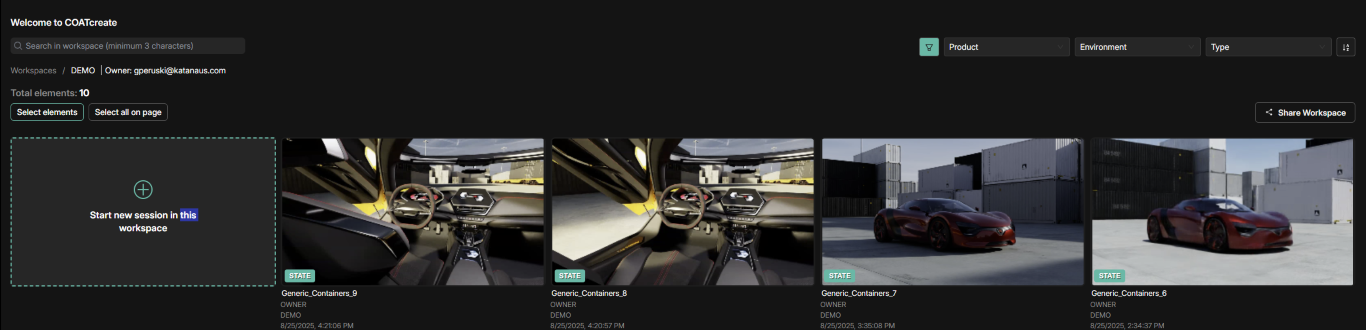
Product Filter
The product filter is a drop-down menu of any vehicles your user currently has access to. By selecting a product, only the elements using that product will be shown in the display.
Environment Filter
The environment filter is a drop-down menu of any environments your user currently has access to. By selecting an environment, only the elements using that environment will be shown in the display.
Type Filter
The Type filter is a drop-down menu that lets you filter by either Render or State.
Elements
Once you have your selection made, you can choose to restore the element to a working session in COAT. There is also a menu for each element in the upper right-hand area of it's thumbnail. This menu will let you move, rename, download, open or delete the element.
Recycle Bin
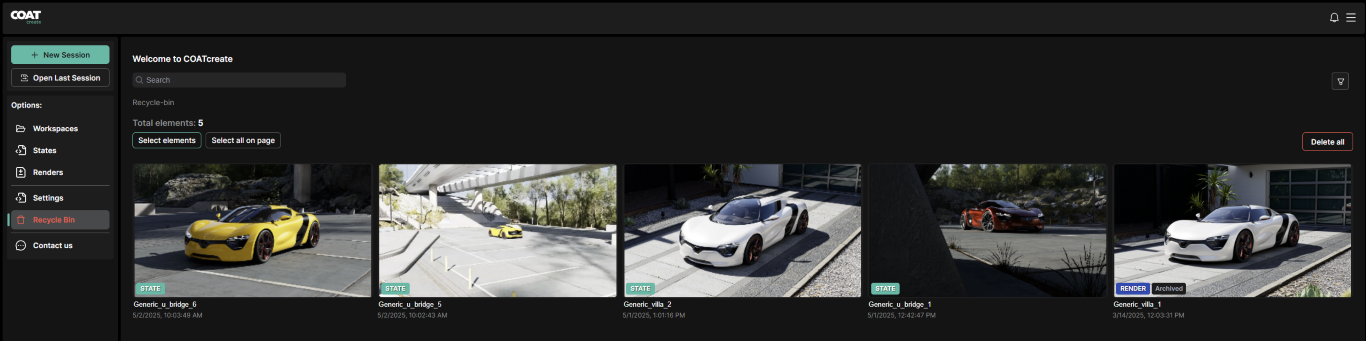
The Recycle bin is a holding area for files before they are deleted. Once a file is deleted there is no way to recover the file. Katana only ensures your active files are available in COATcreate.
Documentation
This is a link to the online documentation for COAT
Multi Select Rendering
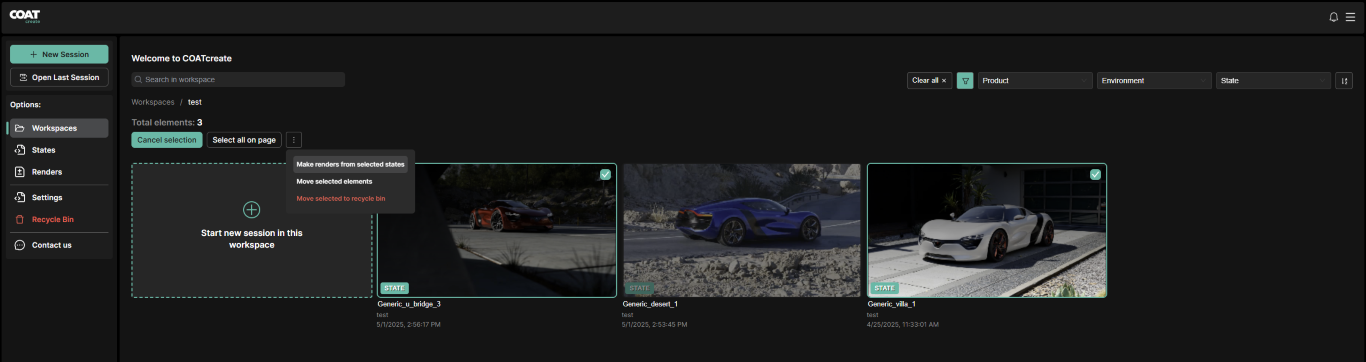
Users can now select multiple states in the dashboard and create renders from them without having to open each one.
In the dashboard click the Select elements button, you may now select multiple elements from the current view (you can not select states across pages at this time). Once two or more states are selected a small three dotted button will appear next to the Select Elements button previsouly clicked. This menu will allow you to do several things. Make renders from selected states, Move selected from workspace to another, or move the selected to the Recycle Bin.
There is also the option to Select all on page
It is important to note when creating renders by this method the images will be rendered at the resolution set in the state when it was created.
Workspace Sharing
Users can grant access to their workspaces to facilitate collaborative workflows with colleagues.
There are two options for sharing a workspace. First, is by clicking the three bar menu in the upper right hand corner of the workspace icon in the Dashboard and choosing the Share option.
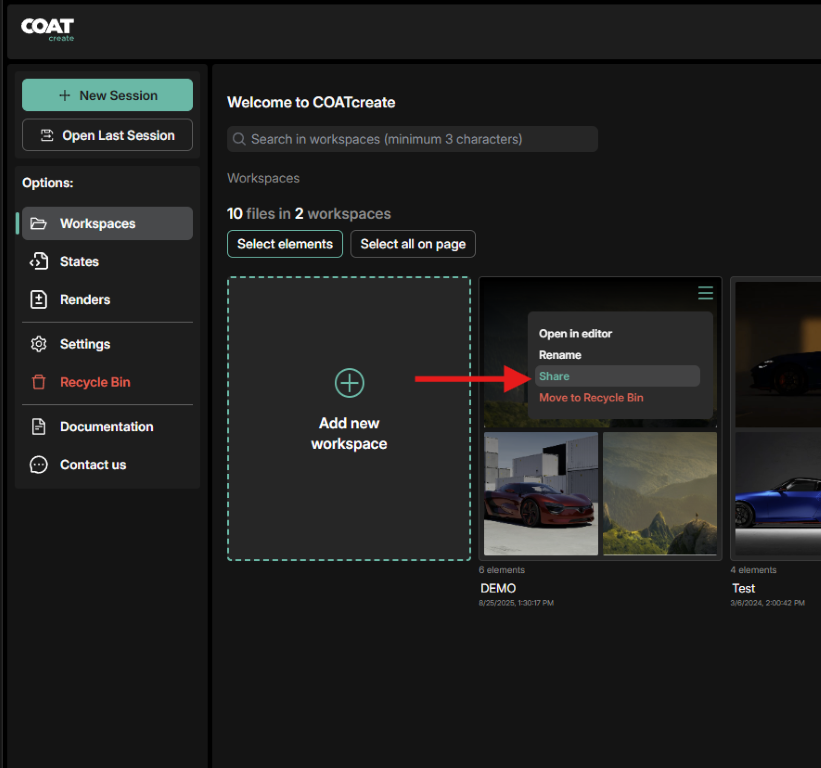
Second, is to click the Share Workspace button on the right side of the screen from within an open workspace.
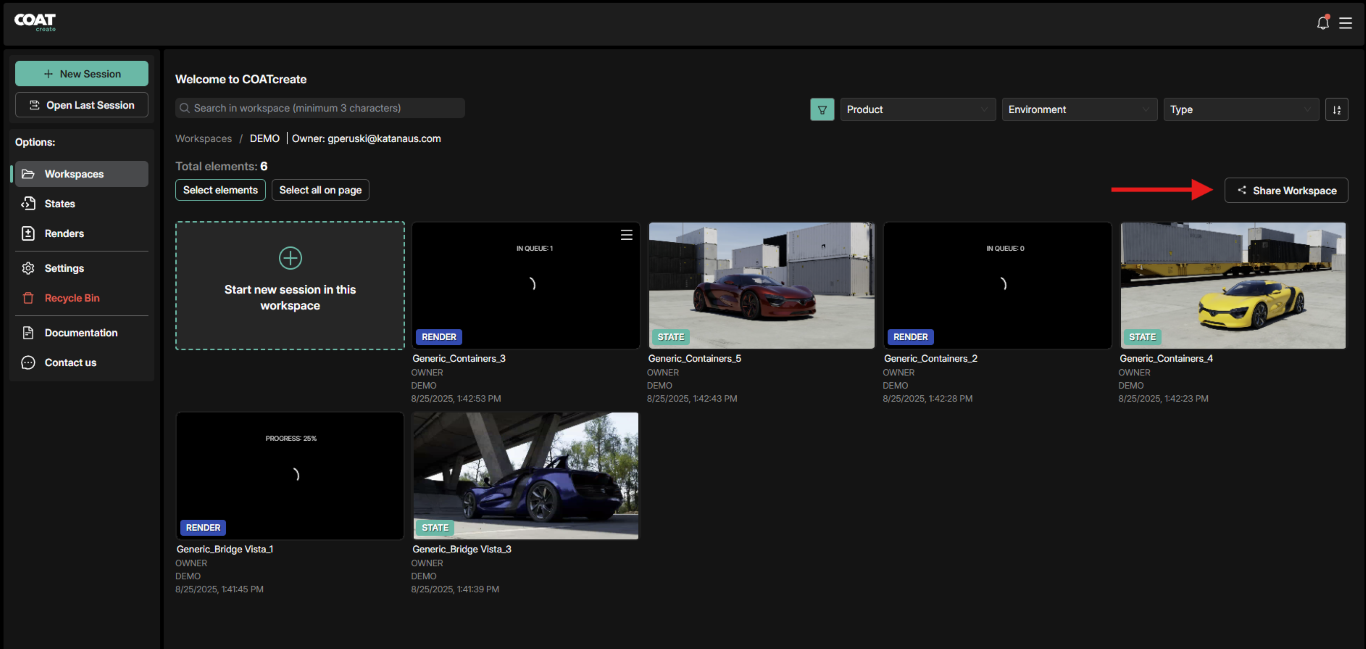
Either method will open the menu shown below.
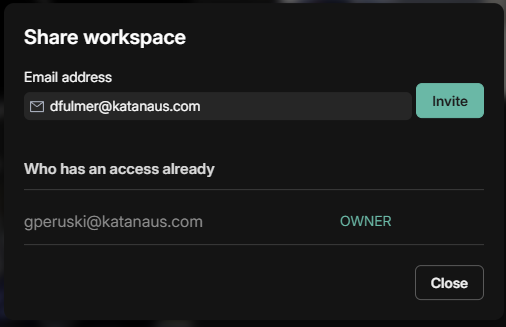
Simply add the email address of the intended COAT user and click the Invite button. The recipient will be notified by email that they have been given access to your workspace.
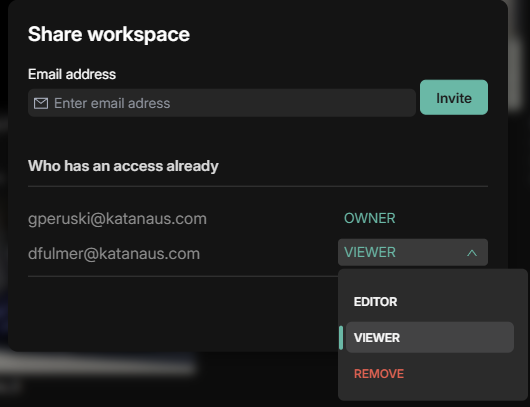
There are two levels of access that can be granted when sharing a workspace.
- Viewer
- Editior
Viewers may open shared states, and save new states in their own workspaces. They can also download states and renders from the shared workspace.
Editors may open shared states, rename shared states, and save new states in the shared workspace as well as their own workspaces. They can also download states and renders from the shared workspace.
At this time only the Owner of the shared workspace may Delete states or renders.
To designate which level of access to grant to the recipient, click the down arrow button to drop down the permissions menu.
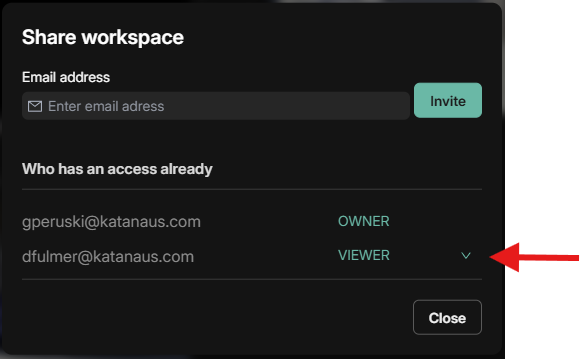
The options for Editor or Viewer and the option to Remove the user will be available. When a user is removed they will no longer have access to the workspace.
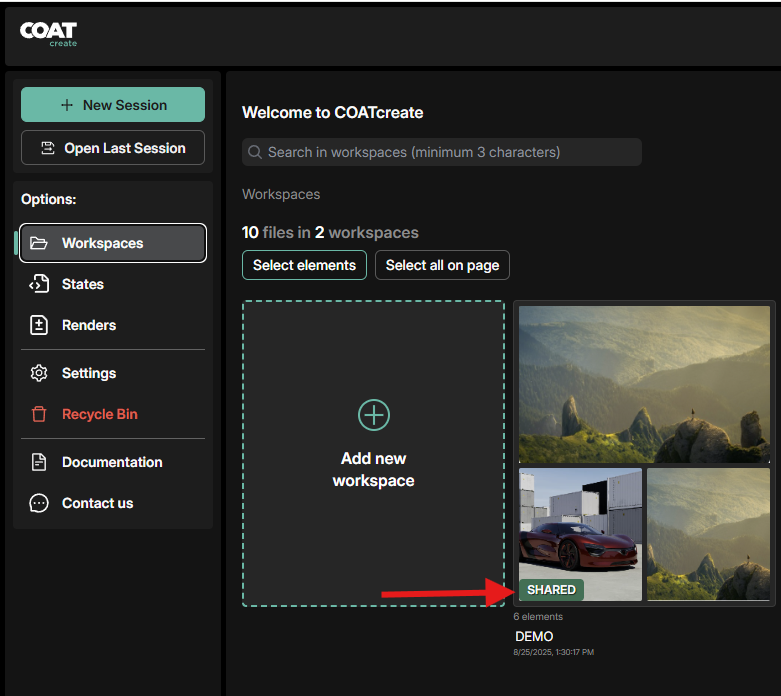
You will be able to see which workspace has been shared within the Dashboard, shared workspaces will be labled with this green SHARED icon.