Product
The Product menu is where you will choose the vehicle you will work with and configure it's options, including trim level, and interior and exterior colors.
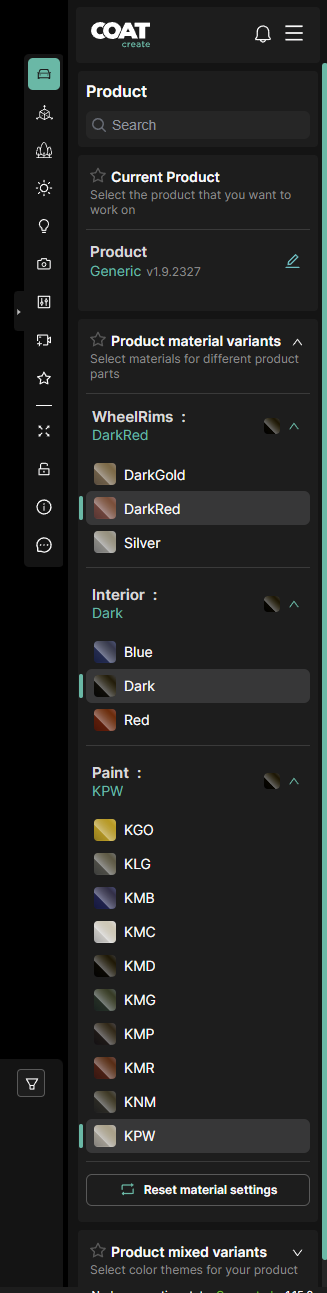
- Search - The Search window filters the options bellow
Current Product
Displays the product you want to work with
Product
Displays the current product or allows a different product to be chosen
Model
A dropdown list of available trim levels.
- The filter button on the right - Opens an EIM browser to sort based on the EIM specification.
Product Material Variants
- Paint - Choose an exterior color, with color code and color icon.
- Interior - Choose an interior color with code and color icon.
Product Mixed Variants
- currently in development
Visibility Variants
- Other Variants on the product such as DRL's and Rear lights
Apply State Parts to copy Product information from one state to another
It is possible to transfer Product information from a State to the active session by using the Apply State Parts function found in the three bar menu of a State thumbnail.
Click on the three bar menu of the State you would like to apply the Product options from and choose Apply State Parts.
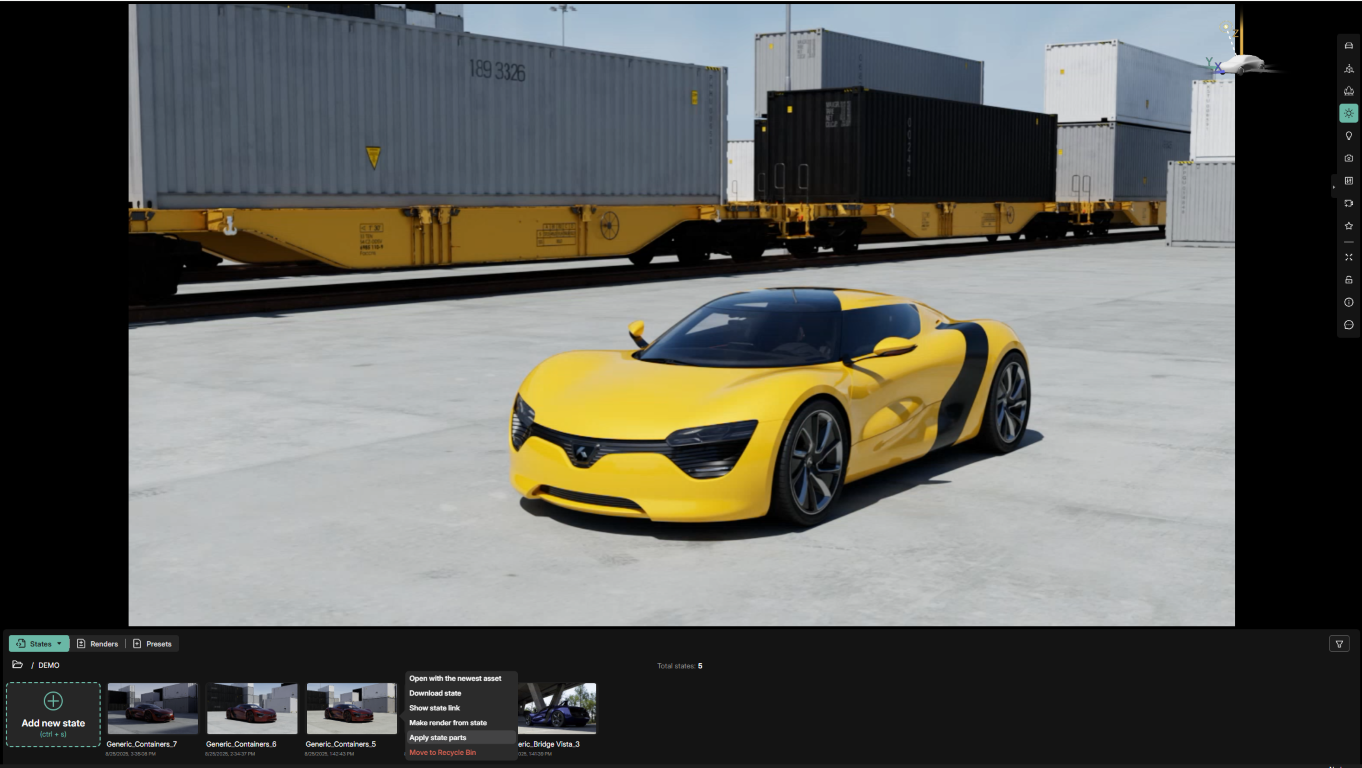
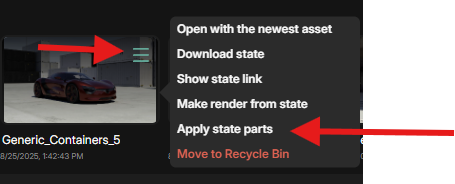
You will be presented with a menu of options
Choose the attributes you would like to transfer
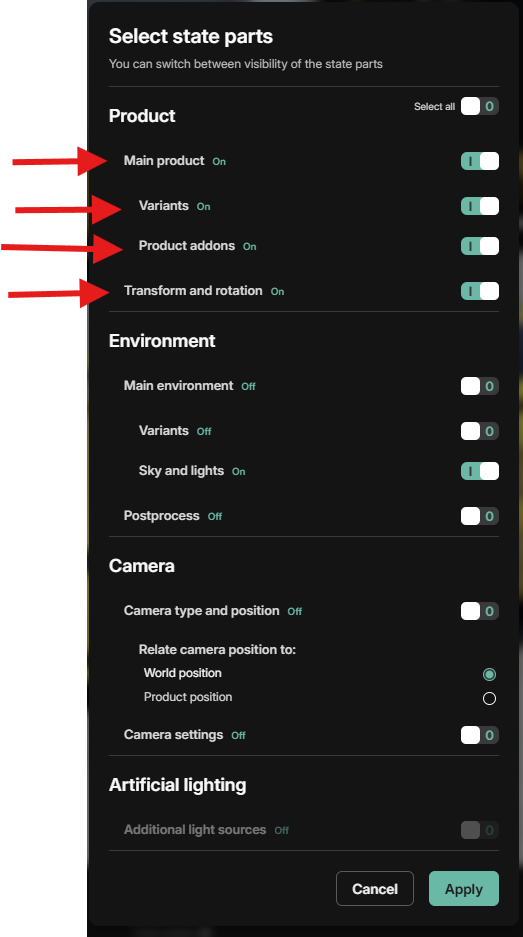
Click Apply
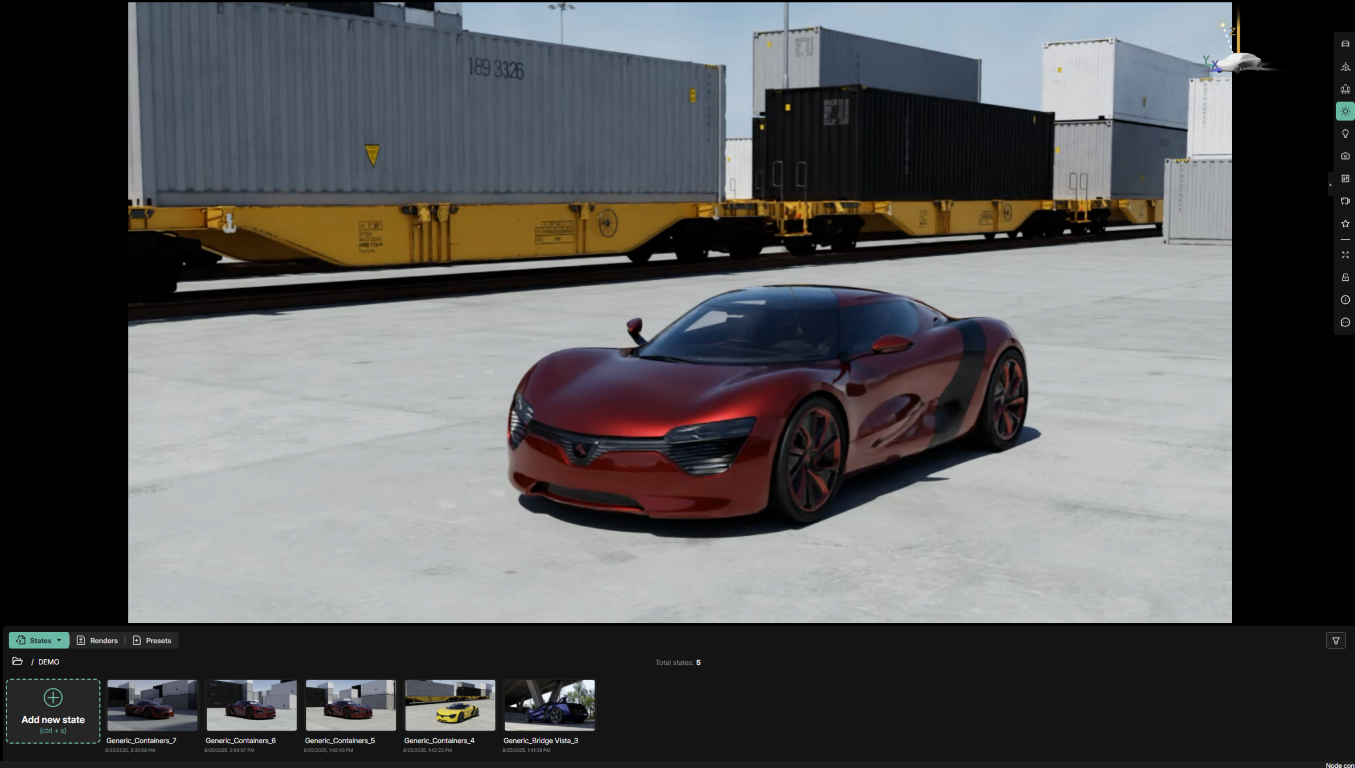
The result will be the camera information being transferred from the desired State to the current Working Session.